
A service can remove the password prompt without removing the ways an account can become inaccessible. That is the part the word “passwordless” usually skips.
A passkey is not a short password with better public relations. During setup, a device or security key creates a public and private key pair for that specific account and service. The service keeps the public key. The private key stays with the authenticator, and a fingerprint, face check, device PIN, or security-key touch approves its use. FIDO’s passkey guide describes the flow and notes that the storage choice matters: a passkey can synchronize through a credential manager or remain tied to particular hardware.
What the label hides
“Passwordless” describes one sign-in route. It does not promise that every device can use that route, that a replacement device will see the same passkey, or that account recovery has become unnecessary.
The difference is practical. Google Password Manager documentation says passkeys saved there can be backed up and used across devices signed in to the same Google Account, while passkeys saved to Windows Hello are local to that computer and cannot be recovered after the computer is lost or its operating system is reinstalled. Neither arrangement is universally better. Synchronization can make a lost laptop less dramatic. A device-bound credential can make the storage boundary easier to understand. The wrong choice is assuming the label tells you which one you got.
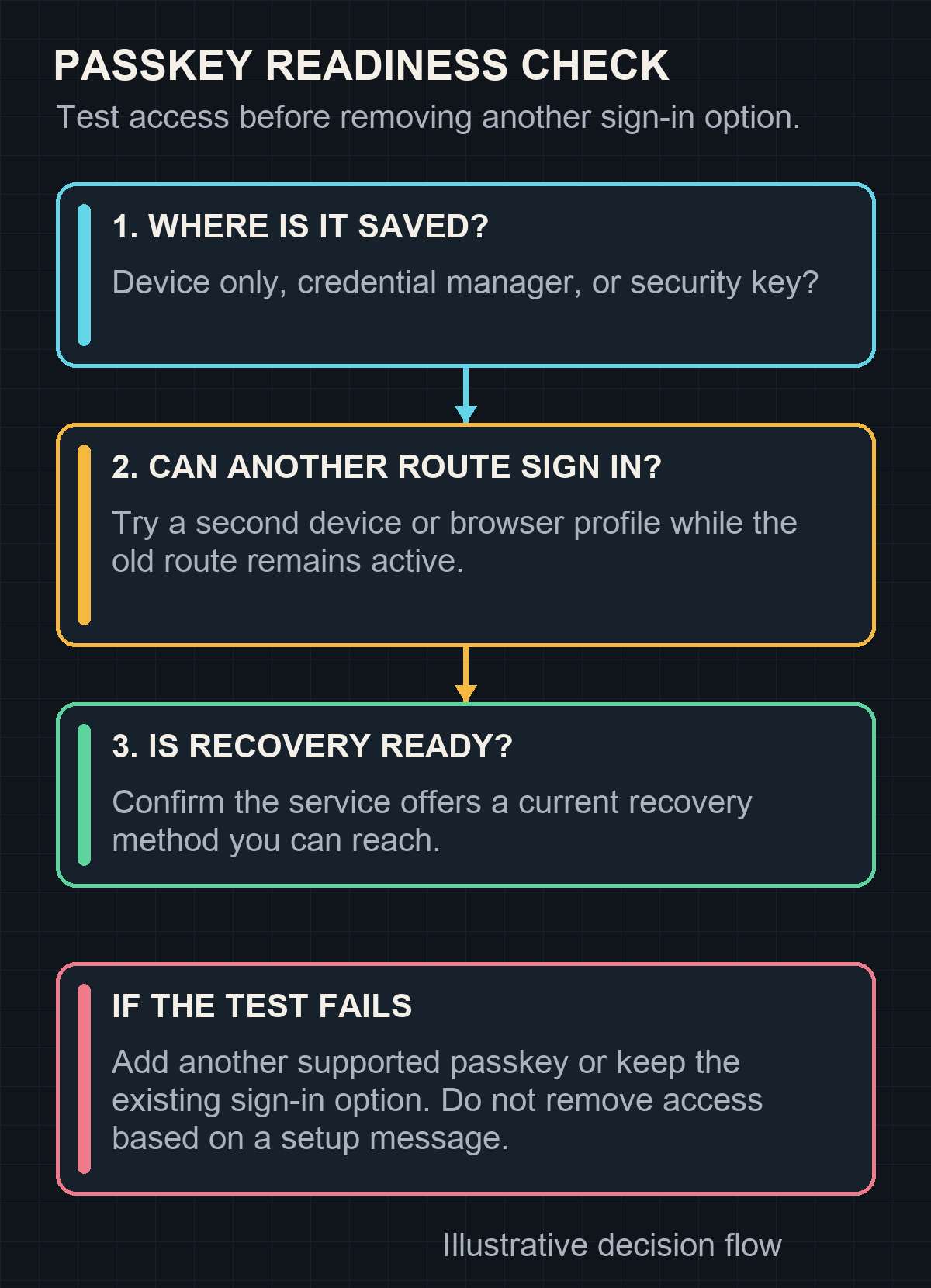
See the decision path: can this account still be reached?
Do the boring test first
Before removing a password or an older sign-in option, do this in order:
- Check the account’s security settings and identify where the new passkey was saved. “On this device,” a platform credential manager, and a hardware security key are different answers.
- Keep the current sign-in method active. From a second device or browser profile, start a normal sign-in and confirm that the account can offer and complete the passkey route. Do not count seeing a setup confirmation as a successful test.
- Review the recovery route separately. Make sure the recovery email, phone number, recovery code, or additional security key that the service offers is current and reachable. The exact choices belong to the service, not to the passkey standard.
- Only then decide whether the old password or fallback method should remain available.
For example, suppose an account’s passkey is stored only in a computer’s local sign-in system. The account works today, but the second-device test cannot find that credential. The correct result is not “passkeys failed.” It is “add another supported passkey or preserve the existing recovery path before changing anything.”
Apple’s passkey security documentation illustrates why recovery is its own question. iCloud Keychain passkeys synchronize across Apple devices, but Apple also requires two-factor authentication for an account using iCloud Keychain and documents a separate recovery process with several conditions. That is useful redundancy, not a reason to stop checking the account-specific recovery instructions.
The finish line is a second route
The useful confirmation is simple: the service signs in with the passkey from a second, expected route, and the account still has a recovery method you can identify and keep current. A passkey does not repair a weak recovery process, guarantee that a particular browser supports every storage choice, or remove the need to protect the account that synchronizes credentials.
Passwordless sign-in is useful. Treat it as a tested access plan, not a magic spell that made account recovery disappear.