
A browser cookie is a small piece of data that a website asks your browser to keep and send back later. It is not a program or a folder containing your entire browsing history. Often it is a label: this browser has signed in, chosen a preference, or started a shopping cart.
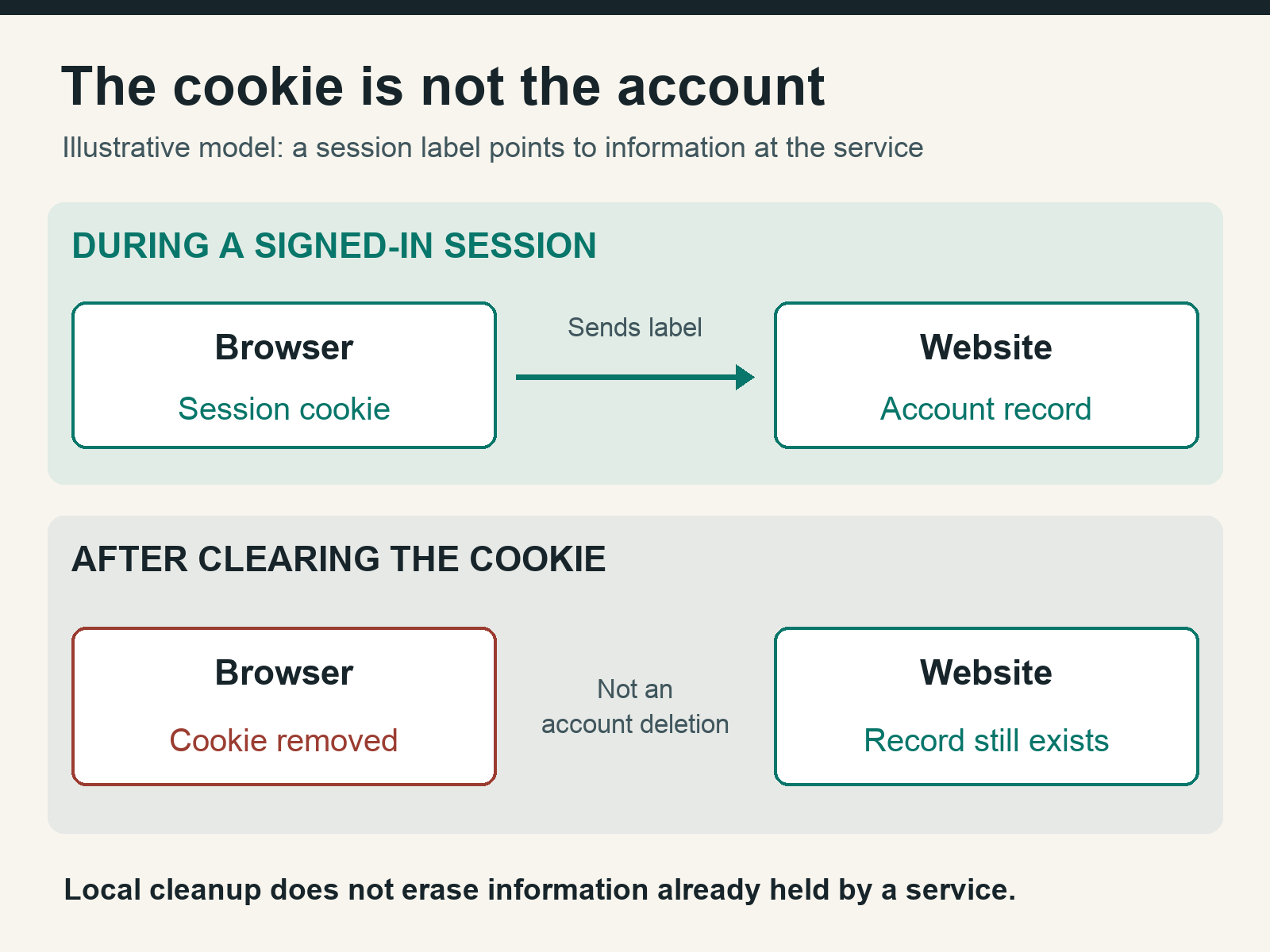
The distinction that matters when deleting one is where the rest of the information lives. Removing the browser’s label does not necessarily remove the account record it pointed to.
The note and the filing cabinet
Mozilla’s cookie documentation describes a typical sign-in flow: the service verifies a login, gives the browser a session identifier in a cookie, and checks that identifier on later requests. The browser sends the label; the service decides whether the session is still valid.
The cookie may look like nonsense rather than a readable description of you. That does not make it harmless to share. A session identifier can act as proof of a signed-in session. Do not paste cookie values into a public troubleshooting post or hand them to someone claiming to fix your account.
A preference cookie might instead store a display choice. Cookies can expire at a set time or at the end of a session. Even that last phrase has a caveat: Mozilla notes that browser session-restoration features can preserve session cookies across restarts. Closing a normal window is not a dependable cookie-clearing procedure.
See how this works: cookies vs. account records
Clear one site’s data, not your whole afternoon
Suppose one site keeps returning to the wrong account or showing a stale preference. Clearing its local data is a reasonable troubleshooting step if you can sign back in. It is not a promise of a repair. Save unfinished work first, and check that you have the necessary sign-in and recovery methods.
For desktop Chrome, Google documents this route: Settings, then Privacy and security, then Third-party cookies, then See all site data and permissions. Search for the site, select its delete control, and confirm. Despite the settings section’s name, this view is where Chrome documents removing a specific site’s stored data.
Be selective. Removing site data may sign you out and reset local preferences; it can also remove local-only work. Do not choose the all-sites deletion option merely because one site is misbehaving. Other browsers and mobile versions use different controls, so use the relevant support instructions rather than hunting for identical labels.
Reopen the site and check the original symptom. If you are signed out or the local preference has reset, the removal had a visible effect. Sign back in if needed and test the task again. Account-backed preferences may return because they live with the account, not just in the browser. That is not evidence that the deletion button lied.
If nothing improves, stop clearing unrelated data. The problem may be the account or service rather than the browser’s saved state. Clearing a cookie also does not revoke every session on every other device; use the service’s account-security controls when that is the goal.
Privacy is a separate decision
First-party cookies come from the site you visit. Third-party cookies come from other sites whose content is included there. Google’s documentation explains that these can support embedded functions as well as advertising and tracking. Blocking them can break a component without breaking the main page.
If a trusted embedded feature fails, consider a site-specific, temporary exception instead of allowing third-party cookies everywhere. Remove the exception when it is no longer needed. Cookie controls are not account-deletion controls, and cookies are not the only way a service can recognize activity. Use local deletion to reset local state. Use the service’s own data controls for the information it retains.