
An AI browser extension cannot summarize a page it cannot see. That is the useful part. The less useful part is treating “read and change site data” as decorative legal fog.
Before adding one, ask a narrower question: does this tool need every page you visit, or only the page you deliberately give it? That choice changes the amount of browsing the extension can inspect. It does not, by itself, answer what the provider does with material after it receives it.
Start with the smallest grant
In Chrome, the extension menu lets you choose whether an extension can read and change data when you select it, on the current site, or on all sites. Chrome also lets you add and remove allowed sites from an extension’s details page. Edge exposes the same three choices and puts its controls under the extension menu and Details page. Its documentation also calls out separate switches for InPrivate mode and local file URLs.
See the decision tree: choose the smallest site-access grant
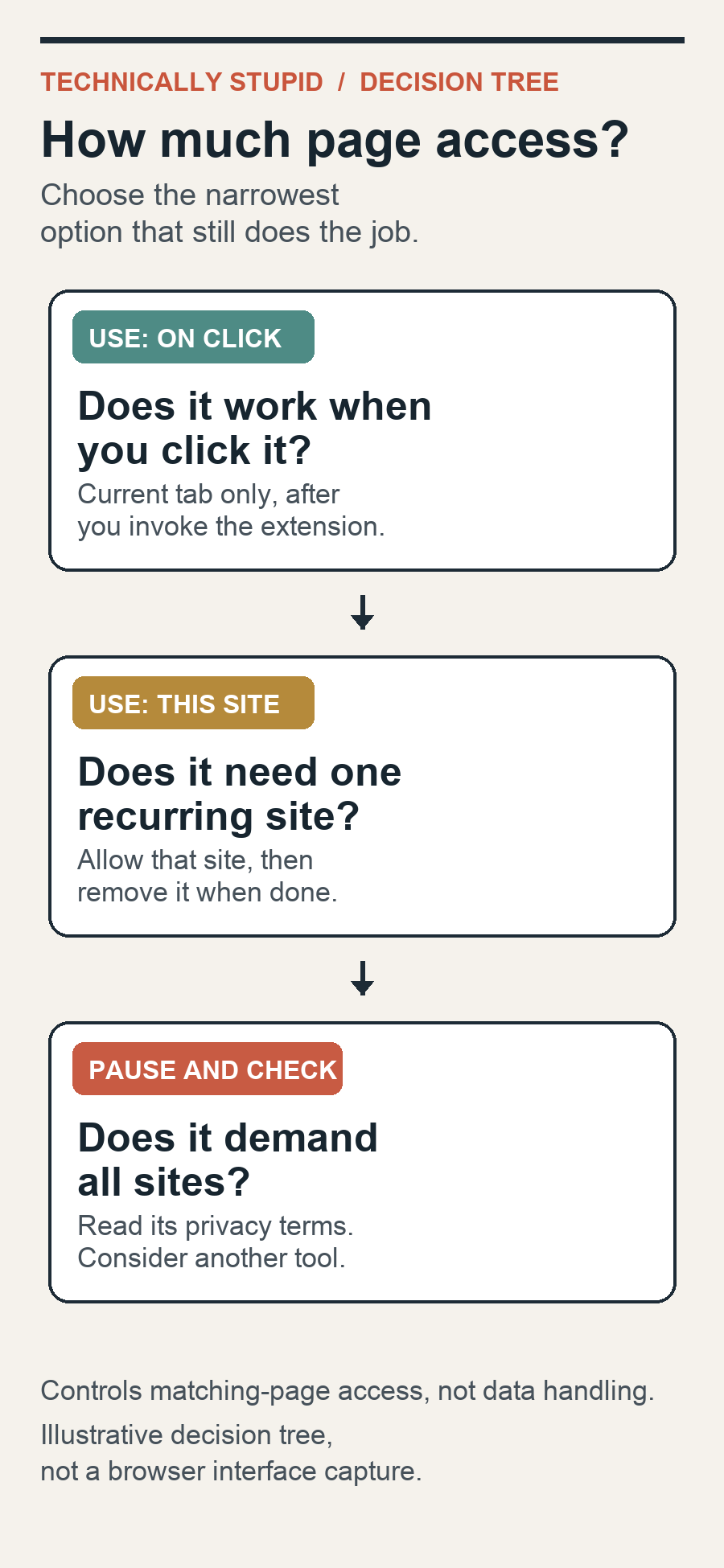
Here is a hypothetical worked example. You want a one-time summary of a product manual. Choose When you select the extension, open the manual, then invoke the extension. If you use a tool every day on one research portal, allow that site rather than every site. “All sites” is for a real cross-site job, not because the default is easier.
For extension developers, Chrome documents an activeTab permission that grants temporary access only after a user gesture, then revokes it when the tab is closed or navigates to another origin. That is not a promise that every extension uses activeTab. It is a useful reminder to distinguish a tool that waits for your instruction from one that runs across the web by default.
What the setting does not settle
Site access is not a privacy policy. It cannot erase text already sent to a service, cancel an AI account, or explain retention, training, human review, or sharing. Read the provider’s terms for those answers. Google also notes that Chrome’s site-access setting applies only to sites matching an extension’s host permissions. It does not control extensions that change lower-level network access through a VPN or proxy.
There are practical limits. A work or school browser may block extensions or manage their settings. An extension may also genuinely need broader access to perform a feature. If that feature is useful, the honest choice may be a separate browser profile for that task, or a different tool. Pretending a broad grant is a narrow one is dumb.
Check the result
After changing the setting, test on an ordinary, non-sensitive page. With on-click access, the extension should need your action before working there. With a single-site grant, try a different site and confirm it does not run automatically. If behavior does not match the selected mode, revisit the extension’s Details page, disable it, and check whether browser management is controlling the setting. The finish line is not installation. It is being able to name the pages you deliberately gave the tool.