
“Single pane of glass” means a combined view, not a guarantee that everything behind it is current or consistent. Before relying on a dashboard, ask which data feeds it, how that data refreshes, and where to inspect a disputed number.
A documented example is Power BI. Microsoft says its dashboards let you see important metrics at a glance and provide a consolidated view of data. Tiles can come from several reports and several underlying semantic models, the data structures those reports query. That is genuinely useful. It does not make those models one synchronized record.
What the combined view leaves separate
Microsoft describes a dashboard as a single page containing highlights. Details live in reports. Dashboards belong to the Power BI service, not Power BI Desktop; creating them in shared workspaces requires the appropriate license and edit permissions. A viewer should not expect a designer’s controls.
The same documentation distinguishes dashboards from reports: you cannot filter or slice the whole dashboard as you would a report. A tile in focus mode has limited filtering, and pinning an entire report page supports interactions that an ordinary pinned visual does not. “Interactive” needs a noun after it: interactive how?
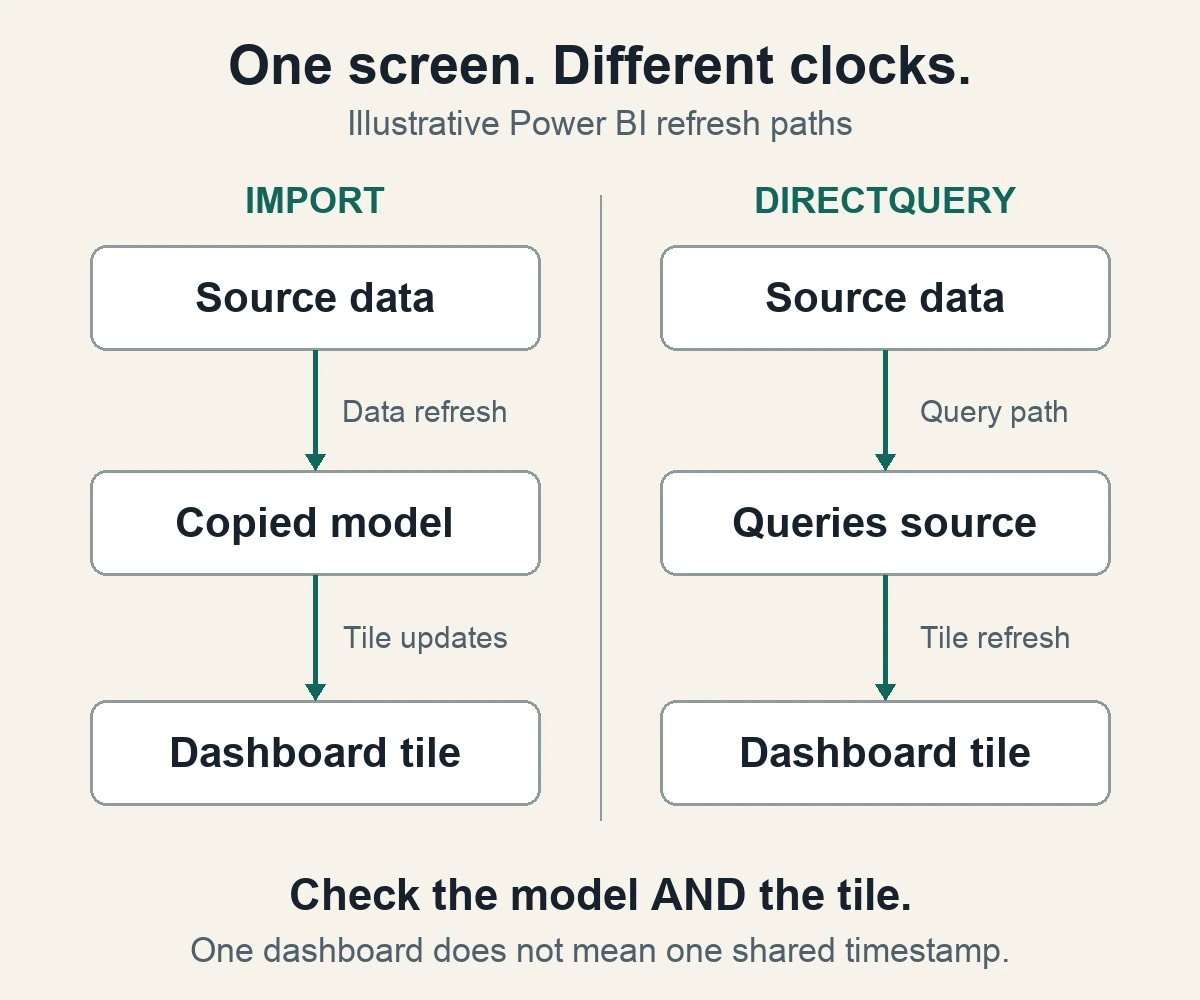
Freshness has conditions too. In Microsoft’s refresh documentation, an Import-mode model is a point-in-time copy that must refresh to fetch source changes. DirectQuery does not import that copy, but its dashboard tiles still have a separate refresh process. Microsoft describes those tile refreshes as happening about hourly, with a configurable schedule. Direct access to data does not mean every tile on an open page changes instantly.
See how this works: dashboard refresh
Ask for a demonstration with a finish line
Hypothetical acceptance check: A purchasing dashboard shows available stock beside unfilled orders. Before treating it as a buying instruction, ask the owner to demonstrate one harmless change in an approved sample dataset. Do not alter real orders to test a sales pitch.
First, record the sample value at its source and note when it changed. Next, identify the report and model feeding the corresponding tile. Ask whether it imports data or queries the source, and which refresh step should expose the change. After that step completes, reload the report or use Refresh visuals: refreshing an imported model does not automatically update visuals in an already open report. Then compare the source, report, and tile.
The expected result is not merely that a spinner stops. The known sample change should reach the report and the correct tile within the agreed delay. Record the actual result, including a failure or a delay; do not assume the documentation is a measurement of your setup.
If the report changes but the tile does not, investigate tile refresh and caching. If neither changes, inspect the model’s refresh status and source connection with its owner. Microsoft’s tile-error guide also distinguishes missing permissions, inaccessible data, and missing model relationships. A blank tile is not a zero.
Compare meanings before comparing numbers
For the stock example, also ask whether “available” excludes reserved items and whether “orders” includes canceled ones. These are proposed acceptance questions, not claims about Power BI defaults. Putting two numbers beside each other does not define their relationship.
A useful dashboard makes the source, meaning, and acceptable age of each important number discoverable. If you cannot establish those three things, use the underlying report or source for the decision and ask the owner to improve the view.
The feature earns its place when it reduces searching without hiding uncertainty. One screen is convenient. One unquestioned answer is a different product.